---
title: Create and manage smart content rules
description: Smart content modules display different versions of your content based on viewer category. For example, you could create alternatives for visitors from a specific country or those viewing on a mobile
---
[Skip to content](https://knowledge.performars.com/migration/en/create-and-manage-smart-content-rules#main-content)
- [English](https://knowledge.performars.com/migration/en/create-and-manage-smart-content-rules)
- [한국어](https://knowledge.performars.com/migration/ko/hubspot/스마트-콘텐츠-규칙-생성-및-관리)
English
Show submenu for translations
![performars\_blog\_logo-3.png\]](https://knowledge.performars.com/hs-fs/hubfs/Icons%20and%20Logos/performars_blog_logo-3.png?height=40&name=performars_blog_logo-3.png)
Open main navigation
Close main navigation
- - [English](https://knowledge.performars.com/migration/en/create-and-manage-smart-content-rules)
- [한국어](https://knowledge.performars.com/migration/ko/hubspot/스마트-콘텐츠-규칙-생성-및-관리)
English
Show submenu for translations
- For your digital growth
For your digital growth
Hello, how can I help you?
- There are no suggestions because the search field is empty.
1. [MarTech Knowledge Center](https://knowledge.performars.com/migration/en?hsLang=en)
2. [HubSpot Website](https://knowledge.performars.com/migration/en/hubspot-website?hsLang=en)
3. [Website pages](https://knowledge.performars.com/migration/en/hubspot-website?hsLang=en#website-pages)
# Create and manage smart content rules
Smart content modules display different versions of your content based on viewer category. For example, you could create alternatives for visitors from a specific country or those viewing on a mobile device.
Learn more about [which modules are eligible for smart content](https://knowledge.hubspot.com/cos-general/smart-content-faq#support) in emails, blog posts, pages, and templates.
#### Smart rule categories
You can base your smart rules on the following categories:
- **Country:** display content to your viewer based on their country. The country is determined by the IP address of the visitor.
- **Device type:** target visitors accessing your site via mobile, tablet, or desktop. The smart content tools analyze the *user agent* of your visitor’s browser to determine their device type. Since this can be changed manually on the device, accurate segmentation cannot be guaranteed.
- **Referral source:** show visitors smart content based on how they found your site.
- **Preferred language:** personalize your content based on the language set within the visitor's web browser.
- **Contact list membership:** show different content to visitors who are members of a specific HubSpot list.
- **Lifecycle stage:** display different content based on a visitor's *Lifecycle stage* property value.
#### Add smart content to your marketing emails (*Marketing Hub Professional and Enterprise only*)
You can add smart rules to the subject line and modules of marketing emails. Learn more about [editing smart content in an email template](https://knowledge.hubspot.com/website-pages/create-and-manage-smart-content-rules#design).
### Add a smart rule to a subject line or module
- In your HubSpot account, navigate to **Marketing** \> **Email**.
- Hover over your email and click **Edit**, or [create a new email](https://knowledge.hubspot.com/email/create-marketing-emails-in-the-drag-and-drop-email-editor).
- To add a smart subject line, navigate to the **Settings** tab. In the *Subject line* section, click **Add smart rule**.

- To add a smart rule to a module, hover over the module, click the **More** dropdown menu, then click **Add smart rule**.
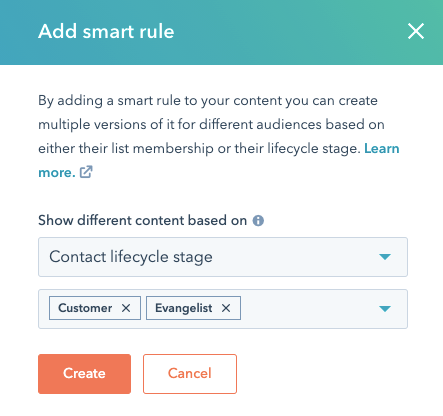
- In the dialog box, click the **Show different content based on** dropdown menu and select **Contact List Membership** or **Contact lifecycle stage.** Because emails are sent to known contacts, you can't use smart content categories based on anonymous information like device type or referral source.
- Click the **dropdown menu** and select the **checkbox** next to each list or lifecycle stage you want to target.
- Click **Create.**
****
### Manage your smart rules
- In your HubSpot account, navigate to **Marketing** \> **Email**.
- Hover over your email and click **Edit**.
- To manage a smart rule for a subject line, navigate to the **Settings** tab. In the *Subject line* section, click **Manage smart rules.** To add a new smart rule, click **Add smart rule**.

- To manage a smart rule for a module, hover over the module, click the **More** dropdown menu, and select **Manage smart rules**.

- In the right panel, click **Add smart rule** to add a rule, then click the **dropdown menu** and select a new **smart rule category.**
- To delete a rule, click the **trash icon** delete next to the rule.
- To change the rule type, delete all existing rules, then click the **Show different content based on** dropdown menu and select a different **rule type**.
- When you've finished managing your smart rules, click **Save**.
### Preview your email as a specific contact
When you're finished editing your smart rules, you can [preview your email](https://knowledge.hubspot.com/cos-general/how-will-my-hubspot-content-appear-on-a-mobile-device)to see how it will appear to a specific contact. This allows you to see how multiple smart modules interact together.
- In your HubSpot account, navigate to **Marketing** \> **Email**.
- Hover over your email and click **Edit**.
- In the top right, click the **Actions** dropdown menu and select **Preview**.
- In the top left of the preview screen, click the **Preview as a specific contact** dropdown menu and select your **contact.**
All smart modules will display the version that applies to the contact you're testing. To preview a smart subject line, [send a test email](https://knowledge.hubspot.com/email/how-do-i-send-a-test-email) instead.
#### Add smart content to a blog post or page
You can add smart content to any module on a blog post or page, except the *Blog content* module. Smart content based on contact list membership or lifecycle stage will only apply to [tracked contacts](https://knowledge.hubspot.com/account/how-does-hubspot-track-visitors).
Visitors to your page who qualify for a smart rule category will see the content you’ve set for that rule. If a visitor qualifies for multiple categories, they will see the content set for the matching rule that appears first on the list.
### Add a smart rule to a blog post or page
- In your HubSpot account, [navigate to your blog, landing pages or website pages](https://knowledge.hubspot.com/account/a-guide-to-hubspots-new-navigation).
- Hover over a post or page and click **Edit.**
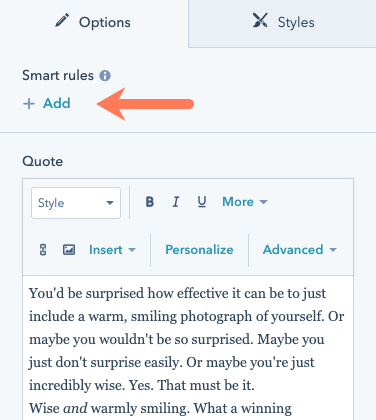
- In the content editor, click the **module** you want to make smart.
- In the sidebar editor, click **Add.**
****
- In the right panel, click the **Show different content based on** dropdown menu and select a **rule type**. You can only select one rule type per module.
- Click **Add smart rule**.
- Select a **smart rule category.**
- Click **Add smart rule** again to add additional rules based on the same rule type.
- To change the rule type, click the **trash icon** delete next to each existing rule. Then click the **Show different content based on** dropdown menu and select a different **rule type**.
- When you have added all smart rules, click **Save.**

- In the sidebar editor, click the **Editing for** dropdown menu to switch between the default content and smart content for each rule.
- Click **Manage smart rules** to add new rules or edit existing ones.

### Preview your page's smart rules
When you've selected a smart variation, the page editor will display the version of the page those visitors will see. All smart modules with the same rule will display content from that smart variation. You can check which variation you're viewing at the top of the editor in the *Previewing smart variation* banner.

#### Add smart content in the design manager
In the [layout editor](https://knowledge.hubspot.com/design-manager/a-quick-tour-of-the-design-manager#layout-editor), you can set a module to display smart content. This will automatically prevent users from editing this module in the content editor.
### Add smart content to a local module
- In your HubSpot account, navigate to **Marketing** \> **Files and Templates** \> **Design Tools**.
- In the [finder](https://knowledge.hubspot.com/articles/kcs_article/cos-general/a-quick-tour-of-the-design-manager#finder), select the **template.**
- In the layout editor, click the **module.**
- In the [inspector](https://knowledge.hubspot.com/design-manager/a-quick-tour-of-the-design-manager#inspector), click the **More** dropdown menu and select **Make module smart**.

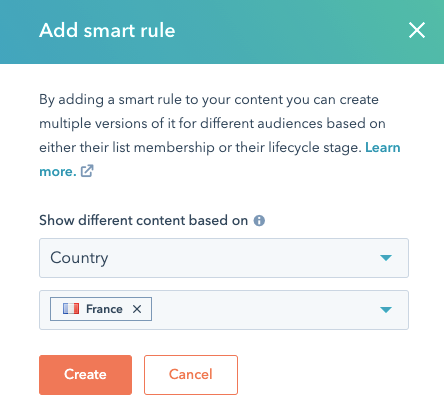
- In the dialog box, click the **Show different content based on** dropdown menu and select a **rule type**. You can only select one rule type per module.
- Click the **dropdown menu** and select a **smart rule category**.
- Click **Create**.
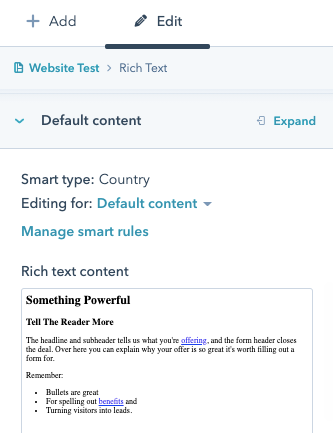
- In the *Default content* section of the inspector, edit your module's smart content.
- Click the **Editing for** dropdown menu to switch between the default content and smart content for each rule.
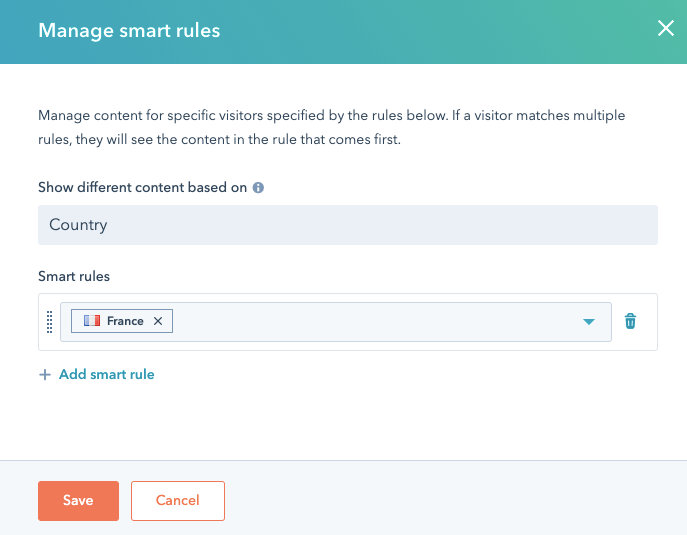
- To add or change smart rules, click **Manage smart rules**.
- - In the right panel, click **Add smart rule** to add additional rules based on the same rule type.
- To change the rule type, click the **trash icon** delete next to each existing rule. Then click the **Show different content based on** dropdown menu and select a different **rule type**.
- When you have finished editing your smart rules, click **Save.**
****
- In the upper right, click **Publish changes** to take your changes live.
### Add smart content to a global module
**Please note:** global modules support smart content, but modules inside global groups do not.
- In your HubSpot account, navigate to **Marketing** \> **Files and Templates** \> **Design Tools**.
- In the [finder](https://knowledge.hubspot.com/articles/kcs_article/cos-general/a-quick-tour-of-the-design-manager#finder), select your **global module.**
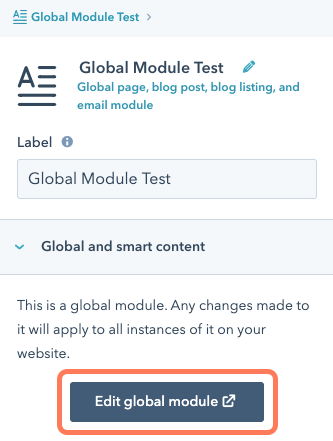
- In the [inspector,](https://knowledge.hubspot.com/articles/kcs_article/cos-general/a-quick-tour-of-the-design-manager#inspector)click **Edit global module**.
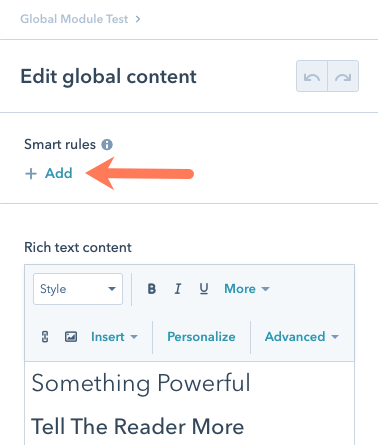
- In the [global content editor](https://knowledge.hubspot.com/cms-general/use-global-content-across-multiple-templates#edit-global-content-within-the-content-editor), click **Add** in the *Smart rules* section of the sidebar editor.
- In the right panel, click the **Show different content based on** dropdown menu and select a **rule type**. You can only select one rule type per module.
- Click **Add smart rule**.
- Select a **smart rule category.**
- Click **Add smart rule** again to add additional rules based on the same rule type.
- To change the rule type, click the **trash icon** delete next to each existing rule. Then click the **Show different content based on** dropdown menu and select a different **rule type**.
- When you have added all smart rules, click **Save.**
- In the upper right, click **Publish to \[#\] assets** to take your changes live.
- [HubSpot Account & Setup](https://knowledge.performars.com/migration/en/hubspot-account-setup?hsLang=en#main-content)
- [Account setting](https://knowledge.performars.com/migration/en/hubspot-account-setup?hsLang=en#account-setting)
- [Billing](https://knowledge.performars.com/migration/en/hubspot-account-setup?hsLang=en#billing)
- [HubSpot Chat & Automation](https://knowledge.performars.com/migration/en/hubspot-chat-automation?hsLang=en#main-content)
- [Workflow](https://knowledge.performars.com/migration/en/hubspot-chat-automation?hsLang=en#workflow)
- [Feedback Survey](https://knowledge.performars.com/migration/en/hubspot-chat-automation?hsLang=en#feedback-survey)
- [HubSpot Sales Tools](https://knowledge.performars.com/migration/en/hubspot-sales-tools?hsLang=en#main-content)
- [Calling](https://knowledge.performars.com/migration/en/hubspot-sales-tools?hsLang=en#calling)
- [Document](https://knowledge.performars.com/migration/en/hubspot-sales-tools?hsLang=en#document)
- [Forecast](https://knowledge.performars.com/migration/en/hubspot-sales-tools?hsLang=en#forecast)
- [HubSpot Website](https://knowledge.performars.com/migration/en/hubspot-website?hsLang=en#main-content)
- [Domains & URL](https://knowledge.performars.com/migration/en/hubspot-website?hsLang=en#domains-url)
- [SEO](https://knowledge.performars.com/migration/en/hubspot-website?hsLang=en#seo)
- [Website pages](https://knowledge.performars.com/migration/en/hubspot-website?hsLang=en#website-pages)
- [Mixpanel Data and Implementation](https://knowledge.performars.com/migration/en/mixpanel-data-and-implementation?hsLang=en#main-content)
- [Mixpanel Web Tracking](https://knowledge.performars.com/migration/en/mixpanel-data-and-implementation?hsLang=en#mixpanel-web-tracking)
- [Mixpanel Analysis](https://knowledge.performars.com/migration/en/mixpanel-analysis?hsLang=en#main-content)
- [Mixpanel Funnels](https://knowledge.performars.com/migration/en/mixpanel-analysis?hsLang=en#mixpanel-funnels)
- [OneSignal Onboarding](https://knowledge.performars.com/migration/en/onesignal-onboarding?hsLang=en#main-content)
- [Onboarding with OneSignal](https://knowledge.performars.com/migration/en/onesignal-onboarding?hsLang=en#onboarding-with-onesignal)
[](https://www.performars.com?hsLang=en)
Growth by MarTech
Copyright © 2026, 퍼포마스(주)