---
title: Create sales goals
description: Sales Hub Starter, Professional, Enterprise Service Hub Enterprise With goals, managers can create user-specific quotas for their sales and services teams. Managers can then assign these goals a
---
[Skip to content](https://knowledge.performars.com/migration/en/create-sales-goals#main-content)
English
Show submenu for translations
![performars\_blog\_logo-3.png\]](https://knowledge.performars.com/hs-fs/hubfs/Icons%20and%20Logos/performars_blog_logo-3.png?height=40&name=performars_blog_logo-3.png)
Open main navigation
Close main navigation
- English
Show submenu for translations
- For your digital growth
For your digital growth
Hello, how can I help you?
- There are no suggestions because the search field is empty.
1. [MarTech Knowledge Center](https://knowledge.performars.com/migration/en?hsLang=en)
2. [HubSpot Sales Tools](https://knowledge.performars.com/migration/en/hubspot-sales-tools?hsLang=en)
3. [Forecast](https://knowledge.performars.com/migration/en/hubspot-sales-tools?hsLang=en#forecast)
# Create sales goals
| Applies To: |
| --- |
| [Sales Hub Starter, Professional, Enterprise](https://www.hubspot.com/products/sales) [Service Hub Enterprise](https://www.hubspot.com/products/service) |
With goals, managers can create user-specific quotas for their sales and services teams. Managers can then assign these goals at the user, team, or pipeline level.
Different subscription tiers have access to different goal measures:
- ***Sales Hub** Starter* and *Professional* has access to only the *Revenue* goal measure.
- ***Sales Hub** Enterprise* has access to the *Calls logged*, *Deals created*, *Meetings booked*, *Revenue* goal measures.
- ***Service Hub** Enterprise* has access to the *Average ticket resolution time*, *Average ticket response time*, *Tickets closed* goal measures.
**Please note:** goals will replace quotas in paid ***Sales Hub*** and ***Service Hub*** accounts created after September 5, 2018. Free users who created a quota in the quota tool before September 5, 2018 will still have access to a basic version of goals in their account.
#### Create goals for your team
- In your HubSpot account, click the **settings icon** settings in the main navigation bar.
- In the left sidebar menu, navigate to **Tracking & Analytics** \> **Goals**.
- Click **Create**.
- In the *right panel*, click the **Type of goal** dropdown menu and select **Sales** or **Services**.
**Please note:** you must be a user with [*Forecast* permissions](https://knowledge.hubspot.com/settings/hubspot-user-permissions-guide#sales-access) in order to create, edit, and delete goals in your account. In order to be assigned a goal, however, you must have have either [a paid ***Sales Hub** Starter, Professional*, or *Enterprise* seat, or a ***Service Hub** Enterprise* seat](https://knowledge.hubspot.com/articles/kcs_article/account/manage-sales-hub-and-service-hub-paid-users).
- Click the **Measurement** dropdown menu and select a goal **measure**. Depending on your subscription, you can choose from the following measures:
- ***Sales Hub** Starter* and *Professional*: *Revenue*.
- ***Sales Hub** Enterprise*: *Calls logged*, *Deals created*, *Meetings booked*, *Revenue*.
- ***Service Hub** Enterprise*: *Average ticket resolution time*, *Average ticket response time*, *Tickets closed*.
- Select the **checkboxes** next to users you want to assign the goal to. You can use the search field to locate a user in your account.
- Click **Add**.
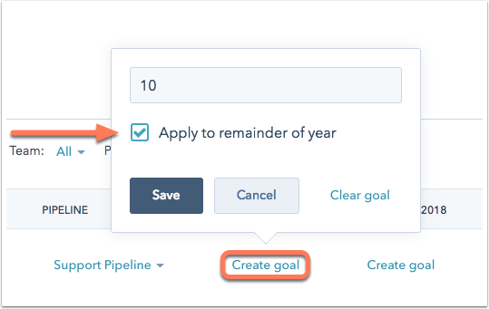
- You can edit each user's goal and set different values for each month. In the appropriate *Month* column to the right of a team member's name, click **Create goal**. 
- To set the same monthly goal for the entire year, enter a goal value, then select the **Apply to remainder of year** box. If you do not choose to apply the goal to the remainder of the year, you will need to manually add a goal for each month.
- Click **Save**.
#### Manage your goals
View your goals by measurement type, team, and pipeline.
- In your HubSpot account, click the **settings icon** settings in the main navigation bar.
- In the left sidebar menu, navigate to **Tracking & analytics** \> **Goals**.
- To filter by a goal measurement, click the **dropdown menu** above the list of users.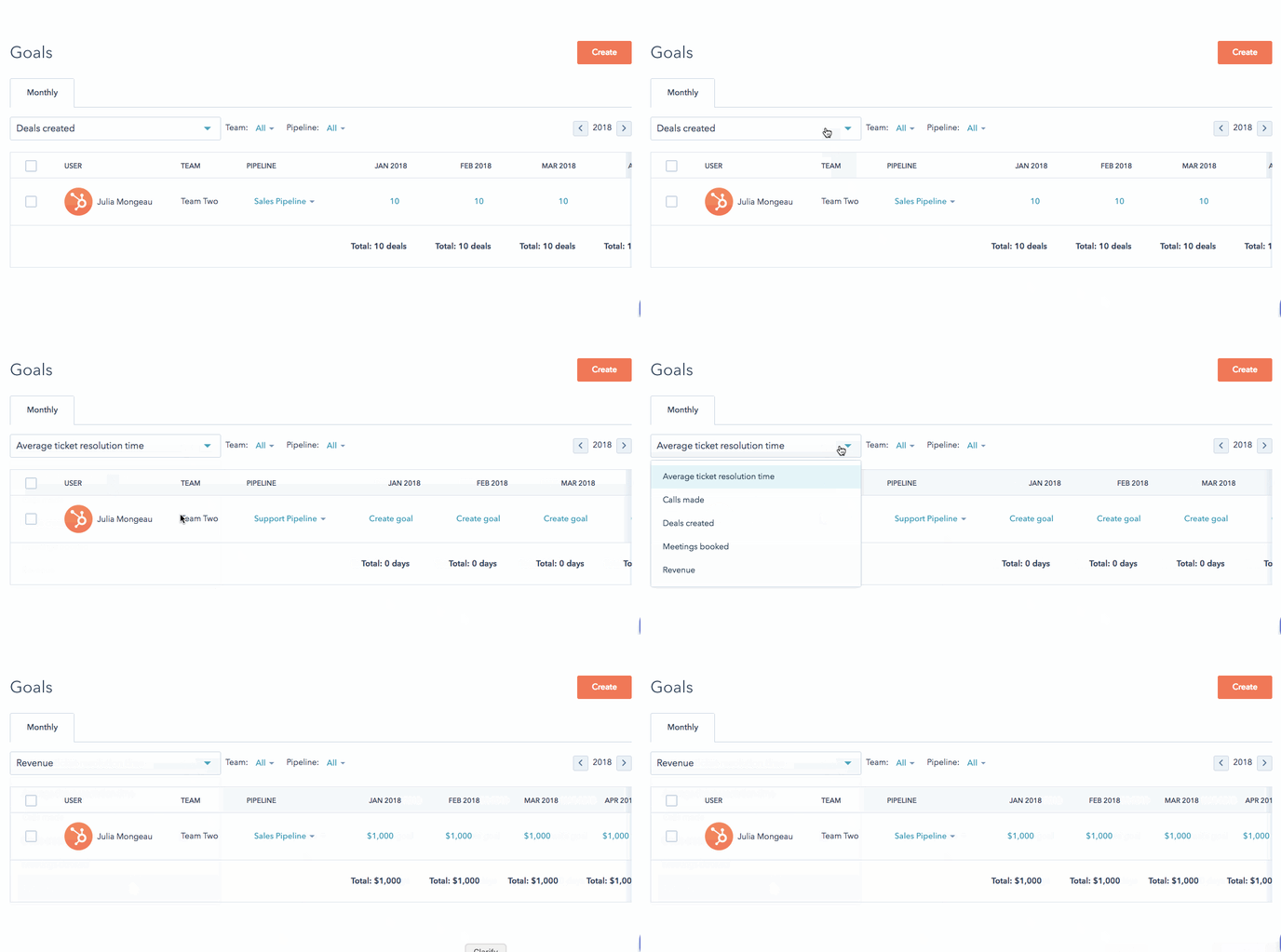
- To filter your users by team, click the **Team** dropdown menu.
- If you are tracking revenue, click the **Pipeline** dropdown menu to view goals for a specific pipeline.
- Edit a month's goal value by clicking the current **goal value**. Enter a new value or select **Clear goal**.
- If you want to remove a user from your goals dashboard, select the **checkbox** to the left of their name, then at the top of the table, click **Delete**.
#### Report on sales goals
You can create single-object reports that track revenue goals to measure your impact over time. HubSpot provides a set of [standard reports](https://knowledge.hubspot.com/reports/how-do-i-report-on-revenue-in-hubspot) in the [report library](https://knowledge.hubspot.com/reports/use-a-report-from-the-report-library), and *Professional* or *Enterprise* users can [customize these reports](https://knowledge.hubspot.com/articles/kcs_article/dashboard/customize-your-dashboards#edit-reports) or [create a custom report](https://knowledge.hubspot.com/articles/kcs_article/reports/how-to-use-the-report-builder-to-create-a-custom-report-widget).
When creating a revenue goal report, keep in mind the following:
- You can add sales goals to a report by [adjusting the *Display options*](https://knowledge.hubspot.com/reports/create-custom-single-object-and-cross-object-reports#display-options) in the report builder. The report must be a single-object deal report that includes a date property. The report must also use the *Line* or *Area* chart type.

- When using sales goals in custom single-object reports, it's recommended to include a filter for a specific pipeline associated with the goal. Otherwise, all pipelines will be factored into the report.
- Revenue goal is calculated as follows: (goal revenue / total number of days in the selected date range) x number of days so far in the selected date range.
- For example, if the date range in your report is set to *This month*, the calculation would be: (goal revenue / total number of days in the month) x number of days in the month so far.
- [HubSpot Account & Setup](https://knowledge.performars.com/migration/en/hubspot-account-setup?hsLang=en#main-content)
- [Account setting](https://knowledge.performars.com/migration/en/hubspot-account-setup?hsLang=en#account-setting)
- [Billing](https://knowledge.performars.com/migration/en/hubspot-account-setup?hsLang=en#billing)
- [HubSpot Chat & Automation](https://knowledge.performars.com/migration/en/hubspot-chat-automation?hsLang=en#main-content)
- [Workflow](https://knowledge.performars.com/migration/en/hubspot-chat-automation?hsLang=en#workflow)
- [Feedback Survey](https://knowledge.performars.com/migration/en/hubspot-chat-automation?hsLang=en#feedback-survey)
- [HubSpot Sales Tools](https://knowledge.performars.com/migration/en/hubspot-sales-tools?hsLang=en#main-content)
- [Calling](https://knowledge.performars.com/migration/en/hubspot-sales-tools?hsLang=en#calling)
- [Document](https://knowledge.performars.com/migration/en/hubspot-sales-tools?hsLang=en#document)
- [Forecast](https://knowledge.performars.com/migration/en/hubspot-sales-tools?hsLang=en#forecast)
- [HubSpot Website](https://knowledge.performars.com/migration/en/hubspot-website?hsLang=en#main-content)
- [Domains & URL](https://knowledge.performars.com/migration/en/hubspot-website?hsLang=en#domains-url)
- [SEO](https://knowledge.performars.com/migration/en/hubspot-website?hsLang=en#seo)
- [Website pages](https://knowledge.performars.com/migration/en/hubspot-website?hsLang=en#website-pages)
- [Mixpanel Data and Implementation](https://knowledge.performars.com/migration/en/mixpanel-data-and-implementation?hsLang=en#main-content)
- [Mixpanel Web Tracking](https://knowledge.performars.com/migration/en/mixpanel-data-and-implementation?hsLang=en#mixpanel-web-tracking)
- [Mixpanel Analysis](https://knowledge.performars.com/migration/en/mixpanel-analysis?hsLang=en#main-content)
- [Mixpanel Funnels](https://knowledge.performars.com/migration/en/mixpanel-analysis?hsLang=en#mixpanel-funnels)
- [OneSignal Onboarding](https://knowledge.performars.com/migration/en/onesignal-onboarding?hsLang=en#main-content)
- [Onboarding with OneSignal](https://knowledge.performars.com/migration/en/onesignal-onboarding?hsLang=en#onboarding-with-onesignal)
[](https://www.performars.com?hsLang=en)
Growth by MarTech
Copyright © 2026, 퍼포마스(주)