---
title: Create and conduct customer loyalty surveys
description: Customer loyalty (NPS) surveys track how likely your customers are to recommend your company to other people. You can send this type of survey through email, or display it on any webpage that has your
---
[Skip to content](https://knowledge.performars.com/migration/en/hubspot/create-and-conduct-customer-loyalty-surveys#main-content)
- [English](https://knowledge.performars.com/migration/en/hubspot/create-and-conduct-customer-loyalty-surveys)
- [한국어](https://knowledge.performars.com/migration/ko/hubspot/고객-충성도-설문-조사-생성-및-수행)
English
Show submenu for translations
![performars\_blog\_logo-3.png\]](https://knowledge.performars.com/hs-fs/hubfs/Icons%20and%20Logos/performars_blog_logo-3.png?height=40&name=performars_blog_logo-3.png)
Open main navigation
Close main navigation
- - [English](https://knowledge.performars.com/migration/en/hubspot/create-and-conduct-customer-loyalty-surveys)
- [한국어](https://knowledge.performars.com/migration/ko/hubspot/고객-충성도-설문-조사-생성-및-수행)
English
Show submenu for translations
- For your digital growth
For your digital growth
Hello, how can I help you?
- There are no suggestions because the search field is empty.
1. [MarTech Knowledge Center](https://knowledge.performars.com/migration/en?hsLang=en)
2. [HubSpot Chat & Automation](https://knowledge.performars.com/migration/en/hubspot-chat-automation?hsLang=en)
3. [Feedback Survey](https://knowledge.performars.com/migration/en/hubspot-chat-automation?hsLang=en#feedback-survey)
# Create and conduct customer loyalty surveys
### APPLIES TO:
| [Service Hub Professional, Enterprise](https://www.hubspot.com/products/service) |
| --- |
Customer loyalty (NPS) surveys track how likely your customers are to recommend your company to other people. You can send this type of survey through email, or display it on any webpage that has your [HubSpot tracking code installed](https://knowledge.hubspot.com/articles/kcs_article/reports/install-the-hubspot-tracking-code).
To set up a customer loyalty survey:
- In your HubSpot account, navigate to **Service** \> **Feedback Surveys**.
- Create, clone, or edit a survey:
- - To create a new survey, click **Create survey** in the upper right.
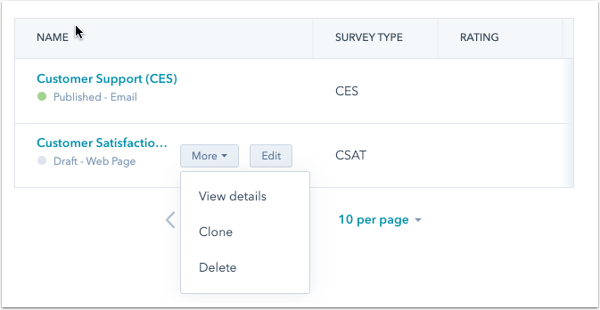
- To clone an existing survey, hover over the survey and click the **More** dropdown menu, then select **Clone**.
- To edit an existing survey, hover over the survey and click **Edit**.
- When creating a new survey, hover over the **Customer Loyalty** card and click **Create survey**.

#### Delivery
- Choose whether to deliver your survey by **Email** or display it on a **Web page**.

- Click the **Recipients** tab to continue.
#### Position (Web page surveys only)
- Select a location for your web page survey: **Slide-in box left**, **Slide-in box right**, or **Dropdown banner**.
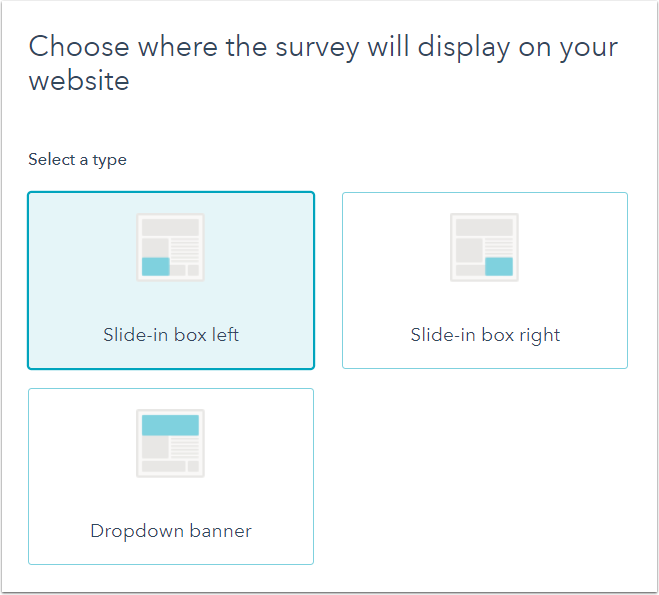
- In the right panel, preview how the survey will be displayed, then click the **Customize** tab to continue.
#### Customize
Customize the branding and appearance of your survey:
### Email surveys
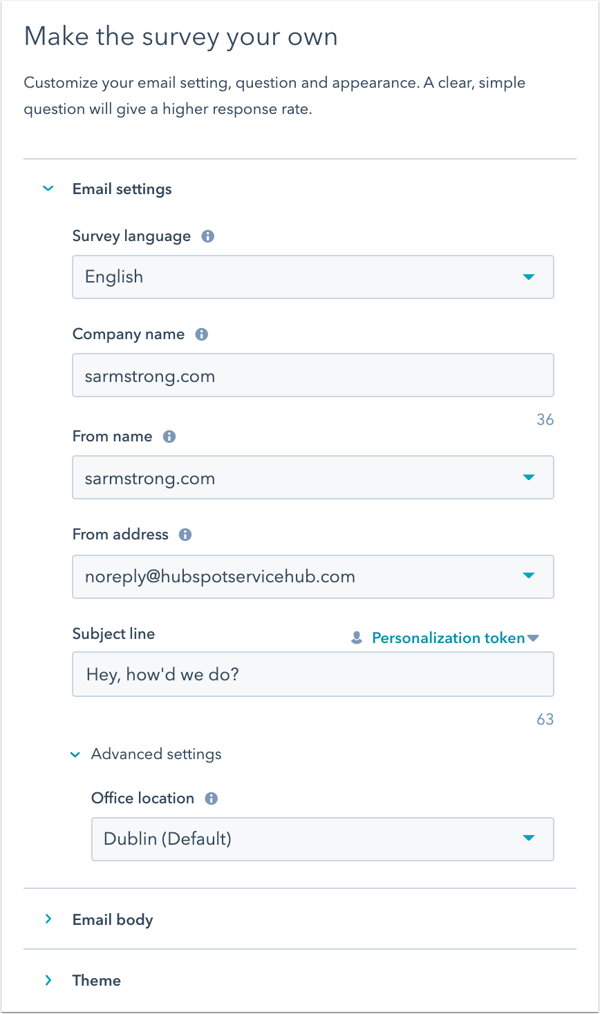
- In the *Email settings* section:
- Click the **Survey language** dropdown menu and select the language you want the survey to be in.
- Enter your **Company name** and select the **From name** and **From address** that your survey will be sent from. You can select the name and email address of any user in your account.
- - Write a **Subject line** for your survey email and In each field, click contacts **Contact token** to include a [personalization token](https://knowledge.hubspot.com/articles/kcs_article/cos-general/how-to-use-personalization-with-your-content).
- Click **Advanced settings** and use the dropdown menu to select the office address that will display on the footer of the email.
- In the *Email body* section:
- Customize the text that appears at the top of your survey using the **Greeting** field.
- In the *Theme* section:
- Click to toggle the **Featured image** switch on to upload an image for the email survey.
- Click to select a **default color** option. To customize your theme color, enter a **hex value** or click the **color picker** on the right.
- To customize the domain that is used in the footer of your email, [edit your logo link](https://knowledge.hubspot.com/cos-pages-editor/how-do-i-change-which-page-my-logo-module-links-to#change-the-logo-link-for-all-logo-modules) in your CMS Settings.
### Web page surveys
- Click the *Survey* tab:
- - Click the **Survey language** dropdown menu and select the language you want the survey to be in.
- Enter your **Company name**.
- - Click to select a **default color** option. To customize your theme color, enter a **hex value** or click the **color picker** on the right.

- In the right panel, preview the email or website survey, then click the **Follow-up** tab to continue.
#### Feedback
Click the **Feedback** tab and customize your follow-up questions to learn more about your customers' responses:
- Click **0 - 6 Detractors** to enter text for customers who gave a low score.
- Click **7 - 8 Passive** to enter text for customers who gave a neutral score.
- Click **9 - 10 Promoters** to enter text for customers who gave a high score.

- In the right panel, preview the follow up question, then click the **Thank you** tab to continue.
#### Thank you
Customize the thank you message a customer will see after submitting the survey:
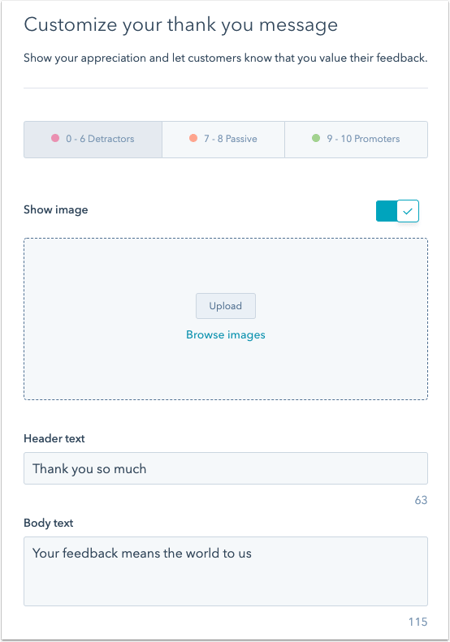
- Click **0-6 Detractors**, **7 - 8 Passive**, and **9-10 Promoters** to customize different *Image,* *Header text*, and *Body text* for each category of survey responses.
- Click to toggle the **Show image** switch on or off to show or not show an image with your thank you message. Click **Upload** or **Browse images** to upload your own image or select an existing one from the file manager.
- Enter a header for your thank you message in the **Header text** field for the selected category.
- Enter a thank you message in the **Body text** field for the selected category.
- In the right panel, preview the thank you messages, then click the **Audience** tab to continue.
#### Audience
Choose the recipients of the survey:
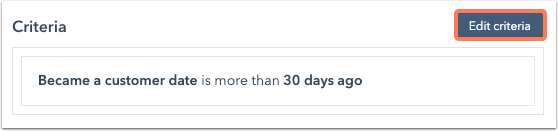
- By default, the survey will be sent to contacts who became a customer more than 30 days ago. To change the default recipient criteria, click **Edit criteria** to make changes.
#### 
- In the *Criteria* tab, customize the filters by clicking the [**AND** or **OR**](https://knowledge.hubspot.com/articles/kcs_article/lists/what-is-the-difference-between-and-vs-or-when-creating-a-list) buttons. You can set filters based on any contact, company, deal, and ticket properties.
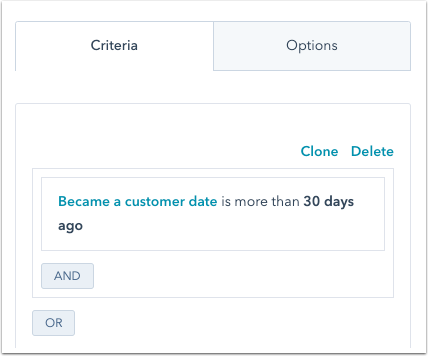
- By default, contacts who already meet the selected criteria will not receive the survey. To conduct this survey with existing contacts who meet the criteria, click the **Options** tab, then click to toggle the **Enroll existing contacts** switch on.
- Once you're done with setting up the filters, in the bottom left, click **Apply**.
#### 
To continue, click the **Settings** tab.
#### Settings
The *Settings* tab includes different options depending on the survey delivery method:
For email surveys:
- Click the *Who gets notified about new survey responses?* dropdown menu, and select **users** and/or **teams** to receive submission notifications via email.
****
For web page surveys:
- In the *Choose where to display the survey* section, select whether to show your survey on **All pages** or **Only pages that match these URLs**. If you select *Only pages that match these URLs*, enter a URL or search for an existing page by name. To add multiple pages, click **Add another page**. Click the **trash icon** delete on the right of a URL to remove the survey from it.
- To set when the survey will load on the page, enter a number of **seconds** in the text field under *When do you want the survey to appear?*
- To display the survey on small screen sizes, select the **Show survey on small screen sizes** checkbox.
- Click the **Add users who should get an email notification** dropdown menu, then select **users** and/or **teams** to receive submission notifications via email.

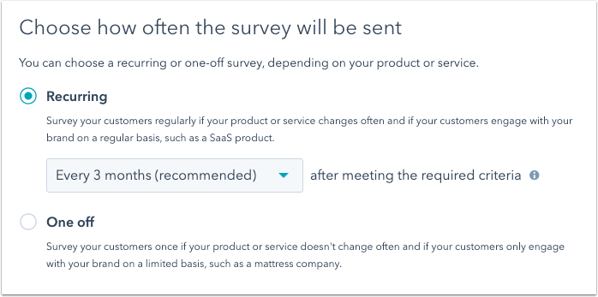
- To set up the frequency of the survey, select **Recurring** to send the survey regularly and click the **dropdown menu** to select the frequency of the survey, or select **One off** to survey your customers once.
- Click the **Automation** tab to continue.
#### Automation
- To set up follow-up actions based on survey responses, click **Create workflow** below the *0 - 6 Detractors*, *7 - 8 Passives*, and/or *9 - 10 Promoters* sections. In the right panel, select the **actions** to automate or click **See more** to see other actions. Learn more about [using workflows actions](https://knowledge.hubspot.com/workflows-user-guide-v2/how-to-choose-your-workflow-actions).

**Please note:** customer loyalty survey workflows will not appear in the workflows tool (**Automation** \> **Workflows**) and can only be edited from this tab of the survey setup.
#### Summary
- To preview how your survey will appear on desktop, tablet, and mobile, click **Preview** in the top right*.*
- To send yourself a version of an email survey or view the survey on a test web page, click **Test survey** in the top right.
- When you're done, click **Review and Publish**.
- Click **Publish** to take your survey live.
- [HubSpot Account & Setup](https://knowledge.performars.com/migration/en/hubspot-account-setup?hsLang=en#main-content)
- [Account setting](https://knowledge.performars.com/migration/en/hubspot-account-setup?hsLang=en#account-setting)
- [Billing](https://knowledge.performars.com/migration/en/hubspot-account-setup?hsLang=en#billing)
- [HubSpot Chat & Automation](https://knowledge.performars.com/migration/en/hubspot-chat-automation?hsLang=en#main-content)
- [Workflow](https://knowledge.performars.com/migration/en/hubspot-chat-automation?hsLang=en#workflow)
- [Feedback Survey](https://knowledge.performars.com/migration/en/hubspot-chat-automation?hsLang=en#feedback-survey)
- [HubSpot Sales Tools](https://knowledge.performars.com/migration/en/hubspot-sales-tools?hsLang=en#main-content)
- [Calling](https://knowledge.performars.com/migration/en/hubspot-sales-tools?hsLang=en#calling)
- [Document](https://knowledge.performars.com/migration/en/hubspot-sales-tools?hsLang=en#document)
- [Forecast](https://knowledge.performars.com/migration/en/hubspot-sales-tools?hsLang=en#forecast)
- [HubSpot Website](https://knowledge.performars.com/migration/en/hubspot-website?hsLang=en#main-content)
- [Domains & URL](https://knowledge.performars.com/migration/en/hubspot-website?hsLang=en#domains-url)
- [SEO](https://knowledge.performars.com/migration/en/hubspot-website?hsLang=en#seo)
- [Website pages](https://knowledge.performars.com/migration/en/hubspot-website?hsLang=en#website-pages)
- [Mixpanel Data and Implementation](https://knowledge.performars.com/migration/en/mixpanel-data-and-implementation?hsLang=en#main-content)
- [Mixpanel Web Tracking](https://knowledge.performars.com/migration/en/mixpanel-data-and-implementation?hsLang=en#mixpanel-web-tracking)
- [Mixpanel Analysis](https://knowledge.performars.com/migration/en/mixpanel-analysis?hsLang=en#main-content)
- [Mixpanel Funnels](https://knowledge.performars.com/migration/en/mixpanel-analysis?hsLang=en#mixpanel-funnels)
- [OneSignal Onboarding](https://knowledge.performars.com/migration/en/onesignal-onboarding?hsLang=en#main-content)
- [Onboarding with OneSignal](https://knowledge.performars.com/migration/en/onesignal-onboarding?hsLang=en#onboarding-with-onesignal)
[](https://www.performars.com?hsLang=en)
Growth by MarTech
Copyright © 2026, 퍼포마스(주)