---
title: Create topics for your SEO strategy
description: "APPLIES TO: In the SEO tool (Marketing > Planning and Strategy > SEO), you can research and organize topics and subtopic keywords based on your company's areas of expertise. These topics serve as the"
---
[Skip to content](https://knowledge.performars.com/migration/en/hubspot/create-topics-for-your-seo-strategy#main-content)
- [English](https://knowledge.performars.com/migration/en/hubspot/create-topics-for-your-seo-strategy)
- [한국어](https://knowledge.performars.com/migration/ko/hubspot/seo-전략을-위한-주제-만들기)
English
Show submenu for translations
![performars\_blog\_logo-3.png\]](https://knowledge.performars.com/hs-fs/hubfs/Icons%20and%20Logos/performars_blog_logo-3.png?height=40&name=performars_blog_logo-3.png)
Open main navigation
Close main navigation
- - [English](https://knowledge.performars.com/migration/en/hubspot/create-topics-for-your-seo-strategy)
- [한국어](https://knowledge.performars.com/migration/ko/hubspot/seo-전략을-위한-주제-만들기)
English
Show submenu for translations
- For your digital growth
For your digital growth
Hello, how can I help you?
- There are no suggestions because the search field is empty.
1. [MarTech Knowledge Center](https://knowledge.performars.com/migration/en?hsLang=en)
2. [HubSpot Website](https://knowledge.performars.com/migration/en/hubspot-website?hsLang=en)
3. [SEO](https://knowledge.performars.com/migration/en/hubspot-website?hsLang=en#seo)
# Create topics for your SEO strategy
APPLIES TO:
| [Marketing Hub Professional, Enterprise](https://www.hubspot.com/products/marketing) |
| --- |
| [CMS Hub Professional, Enterprise](https://www.hubspot.com/products) |
| [Legacy Marketing Hub Basic](https://www.hubspot.com/company-news/inbound-2018-product-announcements#sunset-marketing-basic) |
In the SEO tool (**Marketing** \> **Planning and Strategy** \> **SEO**), you can research and organize topics and subtopic keywords based on your company's areas of expertise. These topics serve as the foundation for all the content you create on your blog and website. Creating content that's organized by topic and subtopic helps search engines understand what your website is about. In the long term, this strategy improves how your content performs in Google search results.
#### Why should I write topic-based content?
Creating content based on clearly defined topics and subtopics helps your website get indexed more accurately by search engines, like Google. Search engines analyze keyword phrases in your content, title, meta description, hyperlinks, and more. [Learn more about how SEO works, and what SEO tools you can access in your HubSpot account](https://knowledge.hubspot.com/cos-general/how-can-i-optimize-my-pages-for-seo).
To define the structure of your online content, identify a few main topics summarizing your company's areas of expertise. To define how your content is organized, each topic will include the following:
- One main [pillar page](https://knowledge.hubspot.com/articles/kcs_article/content-strategy/pillar-pages-topics-and-subtopics#pillar-page) on your website for the main topic.
- Links on the pillar page to other pages or blog posts written about specific [subtopic keywords](https://knowledge.hubspot.com/content-strategy/pillar-pages-topics-and-subtopics#subtopic-keywords). The subtopic keyword content should also includes a link back to your pillar page.
- These internal links between your pages help search engines understand what your website is about, and the importance of each unique page.
Your topic's pillar page and subtopic content can be HubSpot-hosted pages or blog posts, or URLs of pages hosted outside of HubSpot.
#### Add your first topic
When you're ready to create your first topic, you can do so in the SEO tool. Learn more about [choosing a relevant topic](https://blog.hubspot.com/marketing/how-to-do-keyword-research-ht?_ga=2.246684550.349133877.1612813048-1897953727.1612813048).
- In your HubSpot account, navigate to **Marketing** \> **Planning and Strategy** \> **SEO**.
- Click the **Topics** tab.
- Click **Research Topics**
- **I**n the *Enter a topic* box, type a **topic**.
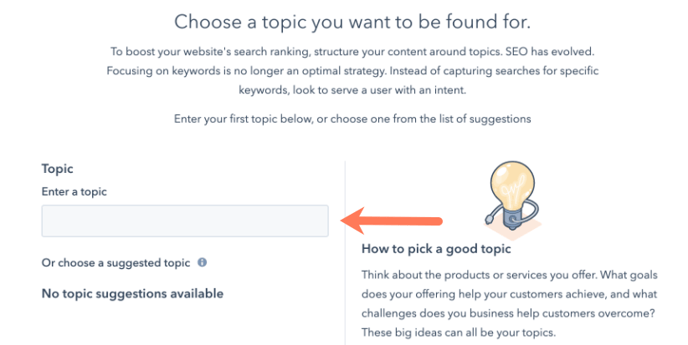
- In the bottom right, click **Done.**
#### Create a new topic
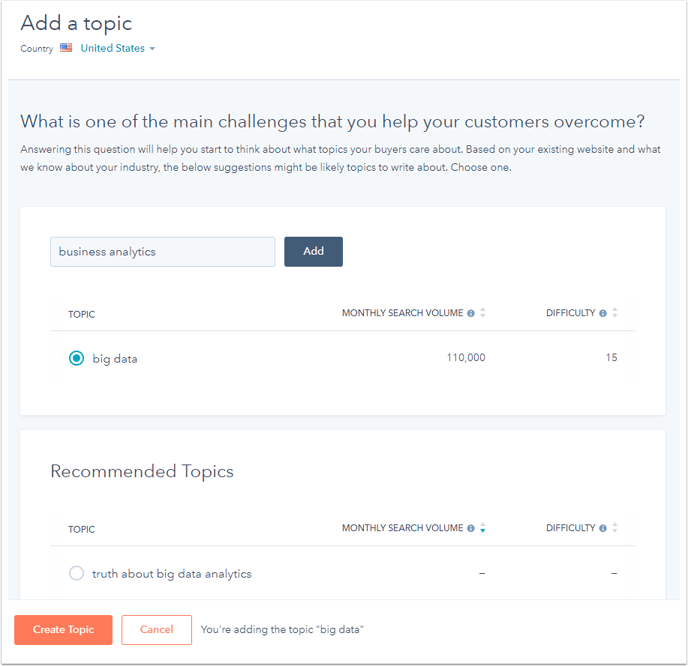
For topics created after your first one, you will be able to view the popularity of the topic phrase and how difficult it will be to rank for this phrase in Google search results before finalizing topic creation:
- In your HubSpot account, navigate to **Marketing** \> **Planning and Strategy** \> **SEO**.
- Click the **Topics** tab.
- In the upper right, click **Add a topic**.
- Enter a **topic** in the text field, then click **Add** to analyze SEO metrics for this topic.
- Review the topic's *Monthly Search Volume* and *Difficulty* [validation metrics](https://knowledge.hubspot.com/articles/kcs_article/content-strategy/where-do-the-validation-metrics-in-the-content-strategy-tool-come-from), which you can compare with the metrics for *Recommended Topics*.
- To view topic validation data for a different location, click the **[Country](https://knowledge.hubspot.com/articles/kcs_article/content-strategy/what-languages-is-content-strategy-available-in)** dropdown menu in the upper left and select another location.
- After researching data for your topic, select the **radio button** next to the topic you want to write about. Then in the bottom left, click **Create Topic**.
#### Attach topic content
Once your topic has been created, you can attach your [pillar page](https://knowledge.hubspot.com/content-strategy/pillar-pages-topics-and-subtopics#pillar-page), a comprehensive resource page that covers the topic in depth. This page links to high-quality content for supporting subtopic keywords.
- In your HubSpot account, navigate to **Marketing** \> **Planning and Strategy** \> **SEO**.
- Click the **Topics** tab.
- Click the **name** of your topic.
- In the center of the topic, click **Attach content URL.**

- In the right panel, attach your pillar page content:
- To attach an existing HubSpot blog post, landing page or website page:
- Use the **Pillar Page** search bar to look up a page or blog post by name or URL.
- Click the **content** that appears in your search results to attach it.
- To link to an external resource:
- Click **Add external URL**.
- Enter the **URL** of your external page or blog post, then click **Save**. The [SEO tool will validate the external link](https://knowledge.hubspot.com/articles/kcs_article/content-strategy/validate-an-external-url-in-the-seo-tool) in about 20 seconds.
- To create a new page or blog post for your topic's pillar page:
- Click **Create a post.**
- Click the **Content type** dropdown menu to select the content type: blog post, landing page, or website page.
- Enter a **title** for your new page or post, then click **Create** to attach your new draft content.
- To attach existing content that contains phrases related to your topic, click a piece of **content** in the *Suggested Content* section.
**Please note:** external URLs must have [the HubSpot tracking code installed](https://knowledge.hubspot.com/articles/kcs_article/reports/install-the-hubspot-tracking-code) for its [internal links to be validated](https://knowledge.hubspot.com/articles/kcs_article/content-strategy/how-can-i-validate-my-internal-links-between-subtopic-and-pillar-pages-in-the-content-strategy-tool).
- Select your pillar page, then click **Save**.
#### Add subtopic keywords and supporting content
After you've attached a pillar page to your topic, you'll attach supporting content based on subtopic keywords. Subtopic content should include a [link back to the topic's pillar page](https://knowledge.hubspot.com/articles/kcs_article/content-strategy/automatically-link-subtopic-content-to-your-pillar-page) to establish your website's authority for your topic and subtopic keywords in search engine results.
**Please note:**
- Each topic can have up to 100 subtopic keywords.
- After adding 20 subtopic keywords, [new subtopic keywords must be added in the *Content Performance* view](https://knowledge.hubspot.com/seo/create-topics-for-your-seo-strategy#content-performance).
- Internal links from HubSpot-hosted content to your pillar page won't validate immediately. You can [check internal links in the SEO tool](https://knowledge.hubspot.com/articles/kcs_article/content-strategy/validate-internal-links-between-subtopic-keyword-content-and-pillar-pages) at a later time and in the [optimize panel](https://knowledge.hubspot.com/articles/kcs_article/cos-general/how-can-i-optimize-my-pages-for-seo) in the content editor.
To add supporting content:
- In the upper right, click **Add subtopic keyword**.
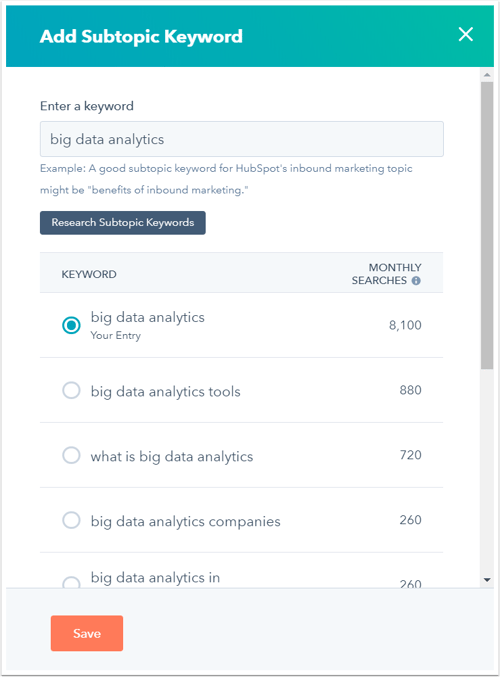
- In the right panel, enter a **subtopic keyword**, then click **Research Subtopic Keyword**. You'll see metrics for the average monthly searches for the subtopic keyword, along with a listing of similar subtopic keywords.
- Select your subtopic keyword, then click **Save**.
- Next, you'll be prompted to attach content to this subtopic keyword.
- In the right panel, attach your supporting content:
- To attach an existing HubSpot blog post, landing page or website page:
- Use the **Subtopic content** search bar to look up a page or blog post by name or URL.
- Click the **content** that appears in your search results to attach it.
- To link to an external resource:
- Click **Add external URL**.
- Enter the **URL** of your external page or blog post, then click **Save**. The [SEO tool will validate the external link](https://knowledge.hubspot.com/articles/kcs_article/content-strategy/validate-an-external-url-in-the-seo-tool) in about 20 seconds.
- To create a new page or blog post for this subtopic keyword:
- Click **Create a post.**
- Click the **Content type** dropdown menu to select the content type: blog post, landing page, or website page.
- Enter a **title** for your new page or post, then click **Create** to attach your new draft content.
- To attach existing content that contains phrases related to your subtopic keyword, click a piece of **content** in the *Suggested Content* section.
**Please note:** you can only attach one piece of content to each topic or subtopic keyword. If you have two pages that cover to the same subtopic keywords, they'll both rank lower in search results. For best results, combine similar content or define a unique subtopic keyword to write about for one of your duplicate pages.
To add a new subtopic keyword in the *Content Performance* tab:
- Click the **Content Performance** tab.
- In the upper right, click **Add subtopic keyword**.
#### Edit subtopic keyword content
To edit your attached subtopic content:
- Click a **subtopic keyword** in the SEO tool.
- In the upper right corner of your *Subtopic content*, click **Remove Attached Content**.
- [Select a new piece of **content**](https://knowledge.hubspot.com/seo/create-topics-for-your-seo-strategy#attach) to attach.
- In the upper right, click the **X**.
To delete a subtopic keyword:
- Click a **subtopic keyword** to open the *Manage Subtopic* panel.
- In the lower right, click **Delete**.
****
- [HubSpot Account & Setup](https://knowledge.performars.com/migration/en/hubspot-account-setup?hsLang=en#main-content)
- [Account setting](https://knowledge.performars.com/migration/en/hubspot-account-setup?hsLang=en#account-setting)
- [Billing](https://knowledge.performars.com/migration/en/hubspot-account-setup?hsLang=en#billing)
- [HubSpot Chat & Automation](https://knowledge.performars.com/migration/en/hubspot-chat-automation?hsLang=en#main-content)
- [Workflow](https://knowledge.performars.com/migration/en/hubspot-chat-automation?hsLang=en#workflow)
- [Feedback Survey](https://knowledge.performars.com/migration/en/hubspot-chat-automation?hsLang=en#feedback-survey)
- [HubSpot Sales Tools](https://knowledge.performars.com/migration/en/hubspot-sales-tools?hsLang=en#main-content)
- [Calling](https://knowledge.performars.com/migration/en/hubspot-sales-tools?hsLang=en#calling)
- [Document](https://knowledge.performars.com/migration/en/hubspot-sales-tools?hsLang=en#document)
- [Forecast](https://knowledge.performars.com/migration/en/hubspot-sales-tools?hsLang=en#forecast)
- [HubSpot Website](https://knowledge.performars.com/migration/en/hubspot-website?hsLang=en#main-content)
- [Domains & URL](https://knowledge.performars.com/migration/en/hubspot-website?hsLang=en#domains-url)
- [SEO](https://knowledge.performars.com/migration/en/hubspot-website?hsLang=en#seo)
- [Website pages](https://knowledge.performars.com/migration/en/hubspot-website?hsLang=en#website-pages)
- [Mixpanel Data and Implementation](https://knowledge.performars.com/migration/en/mixpanel-data-and-implementation?hsLang=en#main-content)
- [Mixpanel Web Tracking](https://knowledge.performars.com/migration/en/mixpanel-data-and-implementation?hsLang=en#mixpanel-web-tracking)
- [Mixpanel Analysis](https://knowledge.performars.com/migration/en/mixpanel-analysis?hsLang=en#main-content)
- [Mixpanel Funnels](https://knowledge.performars.com/migration/en/mixpanel-analysis?hsLang=en#mixpanel-funnels)
- [OneSignal Onboarding](https://knowledge.performars.com/migration/en/onesignal-onboarding?hsLang=en#main-content)
- [Onboarding with OneSignal](https://knowledge.performars.com/migration/en/onesignal-onboarding?hsLang=en#onboarding-with-onesignal)
[](https://www.performars.com?hsLang=en)
Growth by MarTech
Copyright © 2026, 퍼포마스(주)