---
title: Enable the Google Search Console integration in HubSpot
description: HubSpot's integration with Google Search Console brings data from Google searches into your SEO tool. Google Search Console is a free tool that can be used for any website in your Google account. The
---
[Skip to content](https://knowledge.performars.com/migration/en/hubspot/enable-the-google-search-console-integration-in-hubspot#main-content)
- [English](https://knowledge.performars.com/migration/en/hubspot/enable-the-google-search-console-integration-in-hubspot)
- [한국어](https://knowledge.performars.com/migration/ko/hubspot/hubspot에서-google-search-console-통합-활성화)
English
Show submenu for translations
![performars\_blog\_logo-3.png\]](https://knowledge.performars.com/hs-fs/hubfs/Icons%20and%20Logos/performars_blog_logo-3.png?height=40&name=performars_blog_logo-3.png)
Open main navigation
Close main navigation
- - [English](https://knowledge.performars.com/migration/en/hubspot/enable-the-google-search-console-integration-in-hubspot)
- [한국어](https://knowledge.performars.com/migration/ko/hubspot/hubspot에서-google-search-console-통합-활성화)
English
Show submenu for translations
- For your digital growth
For your digital growth
Hello, how can I help you?
- There are no suggestions because the search field is empty.
1. [MarTech Knowledge Center](https://knowledge.performars.com/migration/en?hsLang=en)
2. [HubSpot Website](https://knowledge.performars.com/migration/en/hubspot-website?hsLang=en)
3. [SEO](https://knowledge.performars.com/migration/en/hubspot-website?hsLang=en#seo)
# Enable the Google Search Console integration in HubSpot
### APPLIES TO:
| [Marketing Hub Professional, Enterprise](https://www.hubspot.com/products/marketing) |
| --- |
| [CMS Hub Professional, Enterprise](https://www.hubspot.com/products) |
| [Legacy Marketing Hub Basic](https://www.hubspot.com/company-news/inbound-2018-product-announcements#sunset-marketing-basic) |
HubSpot's integration with[Google Search Console](https://support.google.com/webmasters/answer/9128668?hl=en&__hstc=20629287.ed969157a97f8c6bf630f48c1fad5a41.1616904297612.1619959957249.1619994198812.32&__hssc=20629287.1.1619994198812&__hsfp=1700017138) brings data from Google searches into your SEO tool. Google Search Console is a free tool that can be used for any website in your Google account. The [metrics](https://knowledge.hubspot.com/articles/kcs_article/content-strategy/enable-the-google-search-console-integration-for-your-content-strategy-tool#add-metrics) from the integration include the number of views and clicks your website gets for specific search terms. You can also see the average position of where your website shows up on a Google search results page.
#### Before you get started
### Set up Google Search Console in your own Google account
Before you get started, confirm that you have access to [Google Search Console in your Google account](https://search.google.com/search-console?__hstc=20629287.ed969157a97f8c6bf630f48c1fad5a41.1616904297612.1619959957249.1619994198812.32&__hssc=20629287.1.1619994198812&__hsfp=1700017138). If you don't have access to Google Search Console, learn how to [set up Google Search Console for your website](https://support.google.com/webmasters/answer/9128669?__hstc=20629287.ed969157a97f8c6bf630f48c1fad5a41.1616904297612.1619959957249.1619994198812.32&__hssc=20629287.1.1619994198812&__hsfp=1700017138).
### Add domain properties
To see Google Search Console data for your website, [add a domain website property](https://support.google.com/webmasters/answer/34592?hl=en&__hstc=20629287.ed969157a97f8c6bf630f48c1fad5a41.1616904297612.1619959957249.1619994198812.32&__hssc=20629287.1.1619994198812&__hsfp=1700017138) in your Google Search Console account for any domains you want to track. Adding a domain property will cover all subdomains (blog, www, etc.) and both protocols (http, https).
### Verify site ownership with Google
Google requires a verification step to confirm you own your site.
- All HubSpot-hosted websites are verified with Google Search Console automatically through the file verification method. Each HubSpot-hosted site contains a unique file that's only visible to Google's site verification bot. This means after you enable the Google Search Console integration, you'll be ready to start viewing this data in HubSpot.
**Please note:** if your website is hosted on HubSpot and your site is not automatically verified with Google Search Console, [contact HubSpot Support](https://knowledge.hubspot.com/articles/kcs_article/account/get-help-with-hubspot).
- If your website isn't hosted on HubSpot, work with your web developer to [verify your site ownership with Google Search Console](https://support.google.com/webmasters/answer/9008080?hl=en&visit_id=636948485597637243-1806457688&rd=1&__hstc=20629287.ed969157a97f8c6bf630f48c1fad5a41.1616904297612.1619959957249.1619994198812.32&__hssc=20629287.1.1619994198812&__hsfp=1700017138).
#### Enable the Google Search Console integration in HubSpot
- In your HubSpot account, click the **Marketplace icon** marketplace in the main navigation bar. Under *Manage*, select **Connected apps**.
- In the upper right, click **Visit App Marketplace**.
- In the upper right, use the search bar to look up **Google Search Console**.
- Hover over the *Google Search Console* integration and click **View integration**.
- Click **Connect to Google Search Console**.
- Enter your Google credentials, then click **Allow** to grant HubSpot permission to connect your Google account.
**Please note:** the Google Apps integration requests permission for all Google tools available in HubSpot. It won't ask for access to contacts, calendar, or email unless you already use your ***Sales Hub*** tools to connect with [Google Calendar](https://knowledge.hubspot.com/articles/kcs_article/integrations/use-hubspots-integration-with-google-calendar-or-office-365-calendar) or [Gmail](https://knowledge.hubspot.com/articles/kcs_article/email-tracking/connect-your-inbox-to-hubspot).
Domains with [content attached to your topics](https://knowledge.hubspot.com/articles/kcs_article/content-strategy/create-topics) in the SEO tool will appear in *Connected Sites* in the Google Search Console integration. To view tracked domains:
- In your HubSpot account, click the **Marketplace icon** marketplace in the main navigation bar. Under *Manage*, select **Connected apps**.
- Click **Google Search Console**.
- If any sites are unverified, click **Verify** next to the domain.
If any *Connected Sites* are missing, make sure there's content from this domain attached to a topic in your SEO tool. If any *Connected Sites* are unverified, [review how to add or verify your domain](https://knowledge.hubspot.com/content-strategy/enable-the-google-search-console-integration-for-your-content-strategy-tool#get-started), then click **Verify** to prompt Google to check for your site's verification tag.
**Please note:** if the Google Search Console integration is disconnected from HubSpot, no data will be lost.
#### View Google Search Console metrics in HubSpot
With the Google Search Console integration enabled, your SEO tool and the [*Optimization* tab](https://knowledge.hubspot.com/content-strategy/enable-the-google-search-console-integration-for-your-content-strategy-tool#optimization) of your page or blog post details will have the following metrics:
- **Average position:** your website domain gets a [numeric position value](https://support.google.com/webmasters/answer/7042828?hl=en&__hstc=20629287.ed969157a97f8c6bf630f48c1fad5a41.1616904297612.1619959957249.1619994198812.32&__hssc=20629287.1.1619994198812&__hsfp=1700017138) based on its position on a Google search results page, where position 1 is the top position. This number gives you a high level understanding of how your website is performing in search results related to your topic. [Learn more about how this position is calculated](https://knowledge.hubspot.com/articles/kcs_article/content-strategy/understand-metrics-in-the-google-search-console-integration).
**Please note:** the *Average position* number you see in your SEO tool won't exactly match the Google search results you see for your own topic phrase. Your location, search history, device type, and other dynamic factors affect these results every time you search.
- **Total impressions:** an impression is counted each time your content appears in search results for your topic phrase.
- **Average click through rate:** the average number of times someone clicked on your content in a Google search results page. If an individual clicks the same link multiple times, it will only be counted once.
- **Top search queries:** these are the search terms where your content appears in Google search results. You can see top search queries in the [*Optimization* panel in the page or blog post editor](https://knowledge.hubspot.com/articles/kcs_article/cos-general/analyze-your-page-or-blog-post-performance-and-seo-optimization), and in the *Subtopic content* details panel in your SEO tool.
- **Clicks:** the total number of clicks on a search engine page result for a specific query that sends a visitor to your page.
To add Google Search Console metrics to your SEO dashboard:
- In your HubSpot account, navigate to **Marketing** \> **Planning and Strategy** \> **SEO**.
- Click **Topics** to view your *Topics* dashboard.
- In the upper right, click **Switch Columns**.
- In the dialog box, select the **checkbox** for the Google Search Console metrics you want to view on your dashboard, then click **Save**.
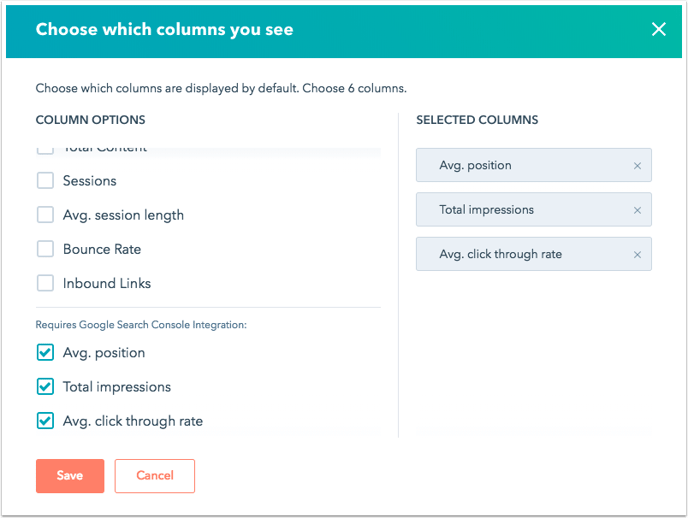
To see search queries and Google Search Console metrics for a specific page or blog post:
- In your HubSpot account, [navigate to your landing pages, website pages, or blog](https://knowledge.hubspot.com/articles/kcs_article/account/a-guide-to-hubspots-new-navigation).
- Click the **name** of the page or blog post you want to analyze.
- Click the **Optimize** tab.
- In the left sidebar menu, click **Search Queries**. Use the **Date range** dropdown menu to adjust the date range for your metrics.

- [HubSpot Account & Setup](https://knowledge.performars.com/migration/en/hubspot-account-setup?hsLang=en#main-content)
- [Account setting](https://knowledge.performars.com/migration/en/hubspot-account-setup?hsLang=en#account-setting)
- [Billing](https://knowledge.performars.com/migration/en/hubspot-account-setup?hsLang=en#billing)
- [HubSpot Chat & Automation](https://knowledge.performars.com/migration/en/hubspot-chat-automation?hsLang=en#main-content)
- [Workflow](https://knowledge.performars.com/migration/en/hubspot-chat-automation?hsLang=en#workflow)
- [Feedback Survey](https://knowledge.performars.com/migration/en/hubspot-chat-automation?hsLang=en#feedback-survey)
- [HubSpot Sales Tools](https://knowledge.performars.com/migration/en/hubspot-sales-tools?hsLang=en#main-content)
- [Calling](https://knowledge.performars.com/migration/en/hubspot-sales-tools?hsLang=en#calling)
- [Document](https://knowledge.performars.com/migration/en/hubspot-sales-tools?hsLang=en#document)
- [Forecast](https://knowledge.performars.com/migration/en/hubspot-sales-tools?hsLang=en#forecast)
- [HubSpot Website](https://knowledge.performars.com/migration/en/hubspot-website?hsLang=en#main-content)
- [Domains & URL](https://knowledge.performars.com/migration/en/hubspot-website?hsLang=en#domains-url)
- [SEO](https://knowledge.performars.com/migration/en/hubspot-website?hsLang=en#seo)
- [Website pages](https://knowledge.performars.com/migration/en/hubspot-website?hsLang=en#website-pages)
- [Mixpanel Data and Implementation](https://knowledge.performars.com/migration/en/mixpanel-data-and-implementation?hsLang=en#main-content)
- [Mixpanel Web Tracking](https://knowledge.performars.com/migration/en/mixpanel-data-and-implementation?hsLang=en#mixpanel-web-tracking)
- [Mixpanel Analysis](https://knowledge.performars.com/migration/en/mixpanel-analysis?hsLang=en#main-content)
- [Mixpanel Funnels](https://knowledge.performars.com/migration/en/mixpanel-analysis?hsLang=en#mixpanel-funnels)
- [OneSignal Onboarding](https://knowledge.performars.com/migration/en/onesignal-onboarding?hsLang=en#main-content)
- [Onboarding with OneSignal](https://knowledge.performars.com/migration/en/onesignal-onboarding?hsLang=en#onboarding-with-onesignal)
[](https://www.performars.com?hsLang=en)
Growth by MarTech
Copyright © 2026, 퍼포마스(주)